
Skip to content
БОТГЕРЦ
Language RU EN 中文
Simple 15 minutes 17.11.2026

Updating the BOTHERTZ-24 ASN firmware via BH24 Configurator

How to update the BG24-ASN-M2 firmware over USB: the .dfw file, Configurator, the "Update firmware locally" command and version verification.

For equipment: ASN BOTHERTZ-24
Regulations: №2216 №1378

Why update the firmware

A software update gives the unit new features and fixes. Firmware 0106262036, in particular, introduced:

  • multi-APN and transmission to four servers;
  • integration with the WEB configurator;
  • support for "Locator" and navigation filters;
  • remote loading of the CAN program with the command 123456*SERV*1.48.xxx.

The feature set depends on the version; check the current list with support.

What you will need

  • A USB Type-C cable.
  • A connected battery or external power.
  • The firmware file .dfw obtained from support.
  • Configurator.exe on Windows.

Procedure

  1. Connect power and USB.
  2. Launch Configurator.exe.
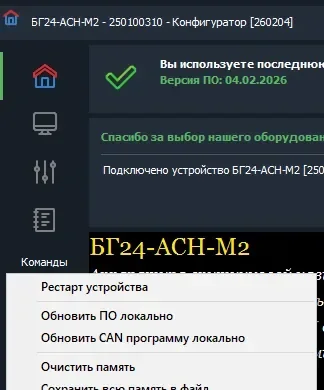
  3. In the left panel, select "Commands".
  4. Click "Update firmware locally".
  5. Choose the .dfw file and confirm.
  6. Wait for the automatic completion without disconnecting USB.
  7. Check the firmware version in the device parameters.
Commands panel in BH24 Configurator
Commands panel: firmware and CAN configuration updates.

Important

  • Do not disconnect USB or power during the update.
  • Do not use firmware for another model.
  • If the update was interrupted, do not repeat it without consulting support: incorrect firmware can damage the unit.

Instruction

Step-by-step procedure

Time to complete: 15 minutes

  1. Prepare the cable and power

    You will need a USB Type-C cable and a connected battery or external power. Do not start the update without power.

  2. Obtain the firmware file

    Request the current .dfw file from technical support. Do not use files from third-party sources: the version must match your model.

  3. Launch Configurator and connect the unit

    Open Configurator.exe, connect the device over USB and wait until it is detected in the application.

  4. Start the update

    In the left panel open "Commands" and select "Update firmware locally". In the dialog, choose the .dfw file and confirm.

  5. Wait for completion and check the version

    The update runs automatically. Do not disconnect USB until it finishes. After the reboot, check the new firmware version index in the device parameters.

If it does not work

Possible errors

The device is not detected

Check the USB Type-C cable and the power. On the first connection, install the drivers via "Welcome → Configurator settings".

The update was interrupted

Do not disconnect power or USB during the process. If the device does not come online, contact support — do not reflash at random.

The version has not changed

Check that the correct .dfw file was selected and that the update completed. Restart the configurator and reconnect the unit.

Sources

  • BG24-ASN-M2 firmware update instructions [0106262036], PDF, 2026
  • docs.duotec.ru/99/local_configurator.html — "Local Configurator", accessed 17.11.2026

Reviewed: 17.11.2026

Read next

Other guides

All guides →

Next step

Let us scope your project

Describe your task and we will prepare a quote with the model, activation cost and delivery timeline. We reply within one business day.